Zram: Compressed RAM as Swap on Arch Linux
Why zram beats a traditional swap partition or swap file, and how to set it up on Arch Linux with zram-generator.
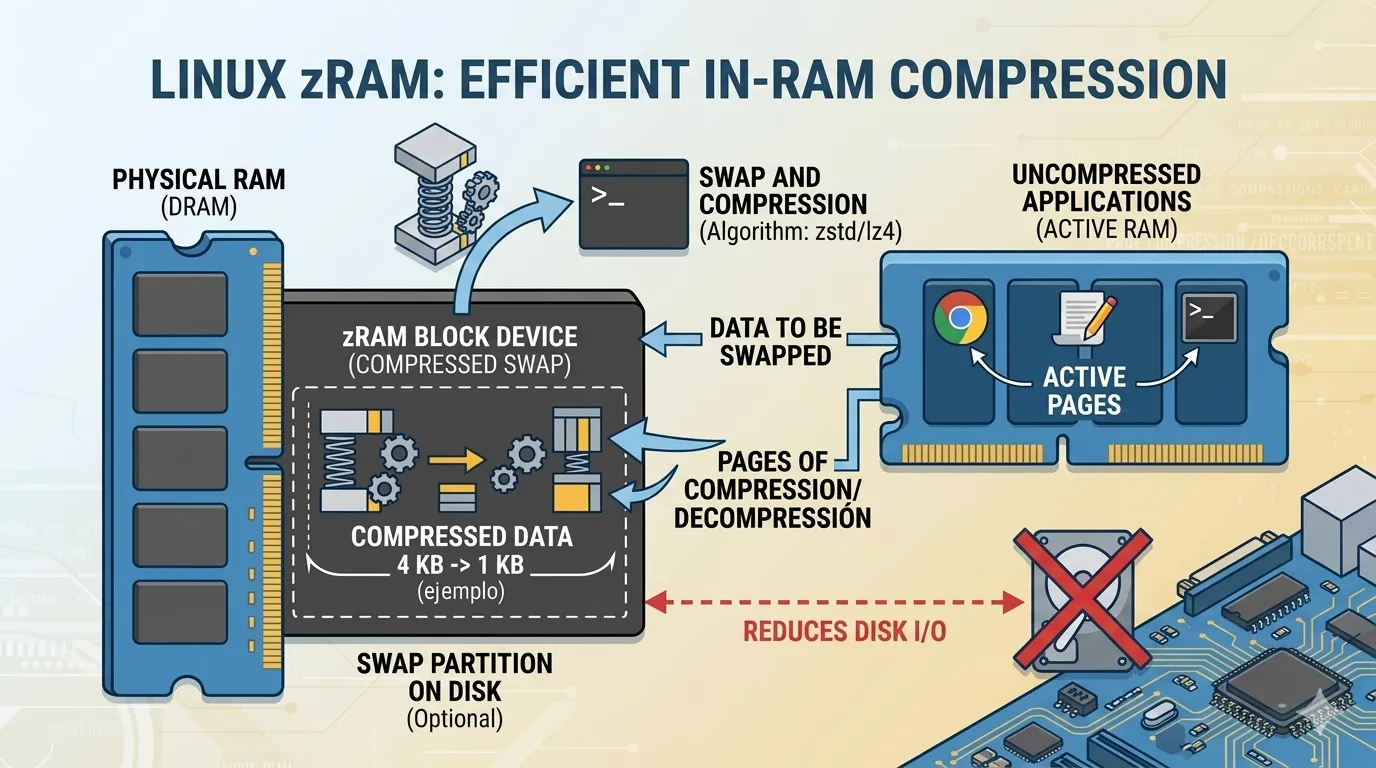
Your RAM is full. The kernel does the only thing it can: it pushes pages out to swap. And if that swap lives on disk, you feel it — your fans spin up, your cursor stutters, and opening another tab becomes a gamble.
Now imagine the same thing, but the swap is in RAM itself, compressed. That’s zram, and it’s quietly one of the best performance upgrades you can make on a modern Linux machine.
What is zram?
zram, formerly called compcache, is a kernel module that creates a compressed block device in RAM. When the system swaps out, pages get compressed and stored in memory instead of being written to disk.
Because of that compression, a 4 GB machine can hold far more than 4 GB of “swap” — text, code, and most of what sits in memory compresses extremely well. In my experience you often see effective compression ratios between 2:1 and 4:1, which means a lot of breathing room for free.
The trade-off? It costs a bit of CPU to compress and decompress pages. On modern hardware that cost is small, and the kernel handles it well. The most common use case for zram is as swap, which is what we’ll set up here.
Swap partition vs swap file vs zram
Let’s quickly line up the three options.
A swap partition is a dedicated disk partition. It’s simple, but it forces you to decide how big it’ll be during partitioning, and resizing it later is annoying.
A swap file is more flexible — it’s just a file you create and enable, easy to resize. Both partition and file, though, share the same core problem: they use disk I/O.
That matters for a few reasons:
- Speed. Even a fast NVMe SSD is several orders of magnitude slower than RAM. Once the system starts swapping to disk, everything drags.
- Wear. Constant swap writes wear out SSDs. It’s a real, if slow, form of degradation.
- Space. A big swap file eats disk you might want for something else.
zram sidesteps all of that. There’s no disk I/O, no extra wear, and it’s self-sizing — it only uses as much RAM as the compressed data actually needs.
The catch is that zram uses physical RAM, so it competes with your running programs. And because it lives in RAM, it can’t hold data through a reboot — which makes it useless for hibernation. For hibernation you still need a disk swap.
For that reason, a common and sensible setup is:
- zram as your primary swap, to absorb day-to-day memory pressure quickly.
- A small disk swap file (roughly the size of your RAM) kept around for hibernation, with a lower priority so zram is used first.
Setting up zram on Arch with zram-generator
The cleanest way on Arch is zram-generator. It ships a systemd generator that creates and enables your zram swap automatically on boot.
Install it:
sudo pacman -S zram-generatorThen create the config file:
sudo vim /etc/systemd/zram-generator.confThis minimal config is enough to get a working zram swap:
[zram0]That’s it. With no options, zram-generator creates a swap on /dev/zram0 sized to half of your RAM, up to a maximum of 4 GiB.
Most people tune that a bit. A common, more generous setting allows up to 16 GiB:
[zram0]
zram-size = min(ram / 2, 16384)
compression-algorithm = zstd
swap-priority = 100
A few notes on what those options mean:
zram-size— a formula based on your total RAM (ram).min(ram / 2, 16384)means “half my RAM, but never more than 16 GiB”. If you’d rather keep it simple, a fixed size likezram-size = 8192works too.compression-algorithm—zstdis the modern default and a great choice for speed and ratio. You can check what your kernel supports withcat /sys/block/zram0/comp_algorithm.swap-priority = 100— makes the kernel prefer zram over your disk swap, which is exactly what you want.
Start it now (no reboot needed):
sudo systemctl daemon-reload
sudo systemctl start systemd-zram-setup@zram0.service
Check that it’s working:
zramctlYou should see something like:
NAME       ALGORITHM DISKSIZE  DATA  COMPR  TOTAL STREAMS MOUNTPOINT
/dev/zram0 zstd           16G  1.1G 198.2M 263.5M         [SWAP]
Here DATA is the uncompressed data stored (1.1 GB), COMPR is how small it actually got (198 MB), and TOTAL is the real RAM being used (263 MB). That’s the whole magic of zram in one line.
On the next boot the generator sets it up automatically, so there’s nothing else to enable.
Conclusion
If you’re on a laptop that thrashes under load, or you just want to give a desktop with modest RAM more room to breathe, zram is a low-effort, high-reward change. It’s fast, it doesn’t wear out your disk, and on Arch it’s a package and a tiny config file away.
Keep a small disk swap around if you ever hibernate, and let zram handle the everyday pressure. Your fans and your NVMe drives will thank you.